Sign in
with your Google Account. This account will be available to other Google apps in the browser.

Welcome
2-Step Verification
To help keep your account safe, Google wants to make sure it's really you trying to sign in
2-Step Verification
To help keep your account safe, Google wants to make sure it's really you trying to sign in
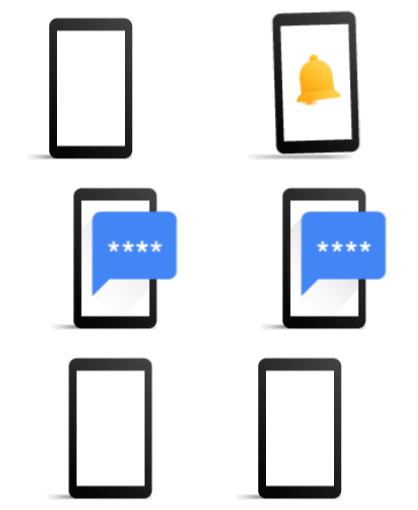
Get a verification code
To get a verification code, first confirm the phone number you added to your account. Standard rates apply.
2-Step Verification
To help keep your account safe, Google wants to make sure it's really you trying to sign in
A text message with a 6-digit verification code was just sent to
Get a code to sign in
This extra step helps make sure it‘s really you signing in
To get your security code, go to g.co/sc in a new browser window
2-Step Verification
To help keep your account safe, Google wants to make sure it’s really you trying to sign in
- Get your Galaxy S10
- Open the Settings app
- Tap Google
- Choose your account, if it is not already selected
- Tap Manage your Google Account
- Select the Security tab (you may need to scroll to the right)
- Under "Signing in to Google" tap Security code
- Choose an account to get your code
2-Step Verification
To help keep your account safe, Google wants to make sure it’s really you trying to sign in
2-Step Verification
Get a verification code from the Google Authenticator app
2-Step Verification
To help keep your account safe, Google wants to make sure it’s really you trying to sign in
2-Step Verification
Enter one of your 8-digit backup codes
2-Step Verification
To help keep your account safe, Google wants to make sure it’s really you trying to sign in
Choose how you want to sign in:
Get a one time security code
Sign in on another device with your passkey or security key to get a code
Verify your identity
To help keep your Google account secure, we want to make sure it's really you trying to sign in.
Open the Google app on your trusted device. Look for the verification request and confirm that the number shown matches the number above.